
The MetroTrade platform lets you control how price data is displayed on your chart, from the chart type to the price scale to which labels and lines appear. This article walks through each option.
Opening Display Settings
- Click the display settings icon in the chart toolbar, next to the Indicators button.
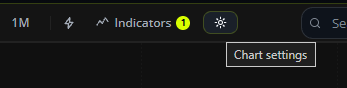
- A panel opens with two tabs: Display and Timezone.
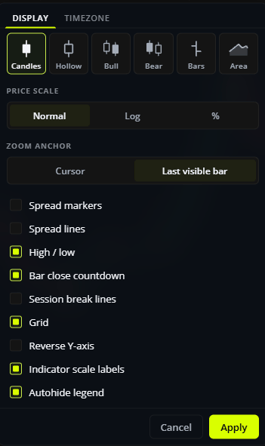
Chart Type
The Display tab lets you choose how price is plotted on the chart.
- Candles: The standard candlestick chart. Each candle shows the open, high, low, and close for that period, with the body colored based on whether price closed higher or lower than it opened.
- Hollow: Displays a candlestick chart with hollow candle bodies.
- Bull: Displays a candlestick chart with hollow green candles and solid red candles.
- Bear: Displays a candlestick chart with solid green candles and hollow red candles.
- Bars: Shows open, high, low, and close as vertical bars with small tick marks instead of candle bodies.
- Area: Shows price as a filled line chart, typically based on the close of each period.
Price Scale
- Normal: A standard linear price scale, where equal distances on the axis represent equal price amounts.
- Log: A logarithmic scale, where equal distances represent equal percentage moves. Useful for viewing price action over longer time periods.
- %: Shows price change as a percentage from a reference point instead of an absolute price.
Zoom Anchor
Controls where the chart zooms from when you scroll in or out.
- Cursor: Zooming is centered on your mouse position.
- Last visible bar: Zooming is centered on the most recent candle on the chart.
Display Toggles
These options turn specific chart elements on or off.
- Spread markers / Spread lines: Displays the current bid and ask price on the chart, either as markers or as lines.
- High / low: Labels the highest and lowest prices currently visible on the chart.
- Bar close countdown: Shows a countdown next to the current price, indicating how much time is left before the current candle closes.
- Session break lines: Draws vertical lines on the chart marking the start of a new trading session.
- Grid: Adds horizontal and vertical gridlines to the chart background.
- Reverse Y-axis: Flips the price axis so higher prices appear at the bottom of the chart instead of the top.
- Indicator scale labels: Shows the numeric scale for any indicators on the chart, such as RSI or MACD, alongside the price scale.
- Autohide legend: Automatically hides the chart legend (symbol name, OHLC, and indicator values) until you hover over the chart.
Timezone
The Timezone tab lets you choose which timezone chart times are displayed in.
Saving Your Changes
Click Apply to save your changes, or Cancel to close the panel without applying them.