
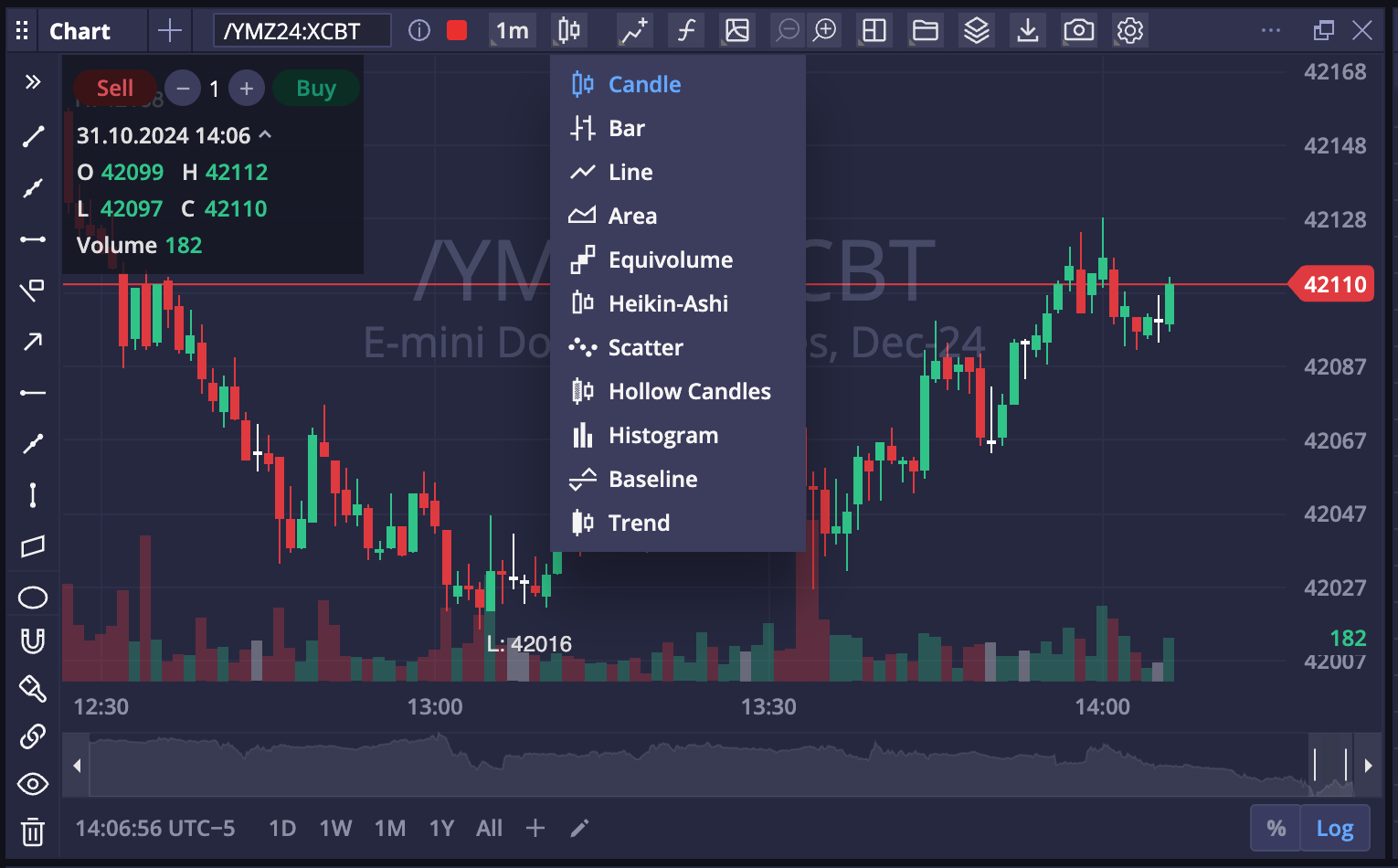
The top section manages chart types, indicators, and studies settings, layouts, export options, and overall chart settings.
The Drawings menu is controlled from the left side of the chart. Insert and manage custom drawings from within this menu.
Manage over 75 studies from the Studies menu.
Control all chart settings in one place via the Settings menu.
Trade from within the chart utilizing the order entry tools embedded in the widget, using the buy/sell buttons at the top of the widget, or by right-clicking within the chart.

From left to right, after the instrument description, the chart tools are as follows:
Two or more widgets in a workspace can be linked together to work with the same instrument and data across widgets.
Change the chart aggregation period using the Time Frame dropdown selector. Preset aggregation periods are: 1m, 5m, 15m, 30m, 1h, 2h, 4h, 1d, 1w, 1mn. Add a custom time frame by clicking Add Time Frame and specify the time frame in the popup window.
Supported chart types include: candle, bar, line, area, etc.
Choose between a default Limit order or a Stop order with a left-mouse click from this menu.
Compare products within the chart by adding a symbol here.
This opens the Studies section. Add up to 75 studies from this button.
Zoom in/zoom out - clicking on the plus sign allows for the user to zoom into a specific section of the chart. clicking the minus sign returns the chart to its previous view.
This button allows the user to open multiple charts in one widget. There are multiple layouts available.
This button allows the user to save different chart layouts.
Use this to export the chart as a csv.
Creates an image of the chart that can be downloaded, linked, or exported.
The settings menu opens a comprehensive suite of settings for all aspects of the chart widget. Choices can be updated to default to all charts.
The drawing features along the left-hand side can be added to any chart.
Key Features of the Drawing Tools:
- Most drawing tools can be moved, resized and rotated after placement
- Points and handles allow adjusting size and position
- Drawing objects can be deleted and edited
- Common use cases include marking support/resistance levels, trends, and price patterns
- Drawing tools work with real-time and historical chart data