
The MetroTrade platform keeps a full record of your orders and trades in the Trades panel. This article covers two tabs: Orders History and Closed Trades.
Orders History
The Orders History tab shows a record of every order you've placed, regardless of outcome.
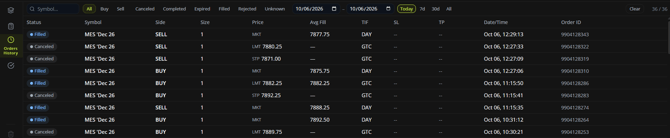
Columns include:
- Status: See Understanding Order Status Labels for what each one means.
- Symbol
- Side: Buy or Sell.
- Size
- Price
- Avg Fill: The average fill price, if the order was filled.
- TIF: Time in force, such as Day or GTC.
- SL and TP
- Date/Time
- Order ID: Useful if you ever need to reference a specific order with support.
You can filter your order history:
- By side (Buy or Sell) or by status (Canceled, Completed, Expired, Filled, Rejected, Unknown)
- By symbol, using the search field
- By date range, using the date pickers or the quick range buttons (Today, 7d, 30d, All)
Click Clear to reset your filters. A counter in the top right shows how many results are currently displayed.
Closed Trades
The Closed Trades tab shows a summary of your completed trades, pairing each entry with its exit.
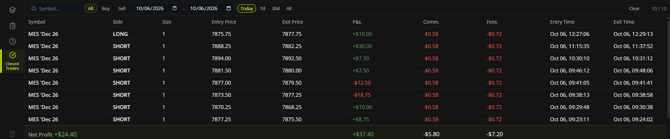
Columns include:
- Symbol
- Side: Long or Short.
- Size
- Entry Price and Exit Price
- P&L: Profit or loss on the trade.
- Comm.: Commission paid.
- Swap
- Entry Time and Exit Time
Like Orders History, you can filter by side, symbol, and date range.
At the bottom of the tab, a summary row shows your Net Profit for the selected date range, along with totals for P&L, commission, and swap.
This article is for informational purposes only and does not constitute trading advice. Futures trading involves substantial risk and is not suitable for every investor.