
The drawing toolbar along the left edge of the chart gives you tools for technical analysis, from trend lines to Fibonacci retracements. This article covers how to select, place, and customize a drawing.
Drawing Tool Categories
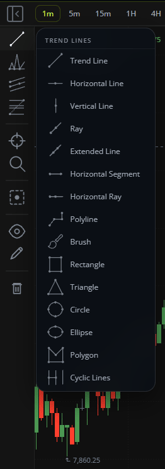
Hovering over an icon in the drawing toolbar opens a flyout listing the tools available in that category. The main categories are:
- Trend Lines
- Shapes
- Trend Channels
- Fibonacci Tools
- Measure
- Zoom
Other Toolbar Icons
Along with the six drawing categories, the toolbar includes three additional icons:
- Eye: Hides drawings, orders, or indicators from the chart.
- Pencil: Opens drawing settings, such as color and line width.
- Trash: Removes all drawings, or just the selected drawing.
Placing a Drawing
- Click the icon for the category of tool you want, such as Trend Lines or Fibonacci Tools.
- Select the specific tool from the flyout list.
- Click on the chart to place your first point, then click again to set the next point. Some tools, like Polyline, let you continue clicking to add additional points.
Customizing a Drawing
After placing a drawing, double-click one of its endpoints to open its settings panel. Changes apply instantly to the selected drawing.
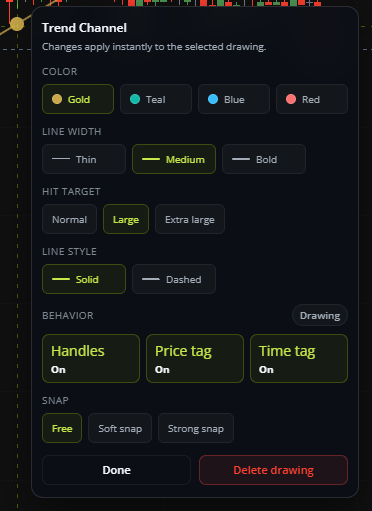
Available settings vary by drawing type, but commonly include:
- Color: Choose from preset colors.
- Line width: Thin, Medium, or Bold.
- Hit target: Controls how close your cursor needs to be to select the drawing (Normal, Large, or Extra large).
- Line style: Solid or Dashed.
- Behavior: Turn Handles, Price tag, and Time tag on or off.
- Snap: Controls how closely the drawing snaps to price and time values when you place or move it (Free, Soft snap, or Strong snap).
Click Done to close the settings panel, or Delete drawing to remove the drawing from the chart.
This article is for informational purposes only and does not constitute trading advice. Futures trading involves substantial risk and is not suitable for every investor.